Update Figma library
Keep your Primitives Kit and Auth Kit in sync with the latest Etesie & Skeleton updates.
From time to time we release new versions of the Etesie Figma Kits (for example Primitives v4.1.x or an updated Auth Kit). Your themes stay in
the Theme Editor, but your Figma libraries still need to be upgraded.
The flow is simple: import the new .fig file → publish it as a library → swap it into your projects → remove the old version. This keeps all files on the latest components without breaking your custom theme.
How to update the library
1. Download the latest Figma Kit version
Whenever we ship an update, re-download the latest Primitives and/or Auth .fig files from the Dashboard.
Open Figma Kits
2. Import the new version into Figma
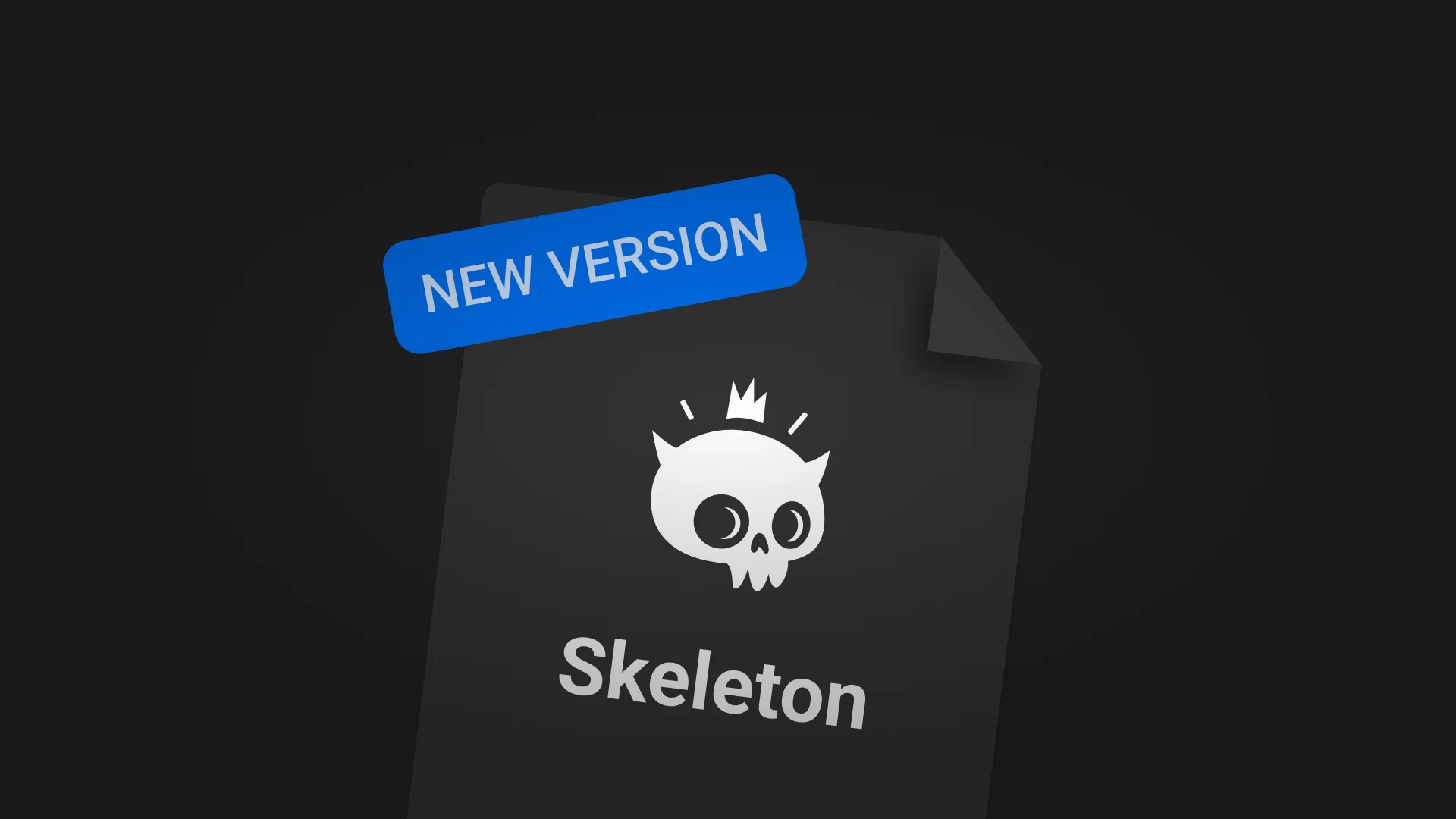
In your Libraries project (from Chapter 1), click Create new¹ in the top-right corner and select Import². Then choose Import from computer³ and select
the updated Primitives or Auth .fig file.
You’ll now have both the old and the new kit versions side by side in the same project.
3. Publish the new library version
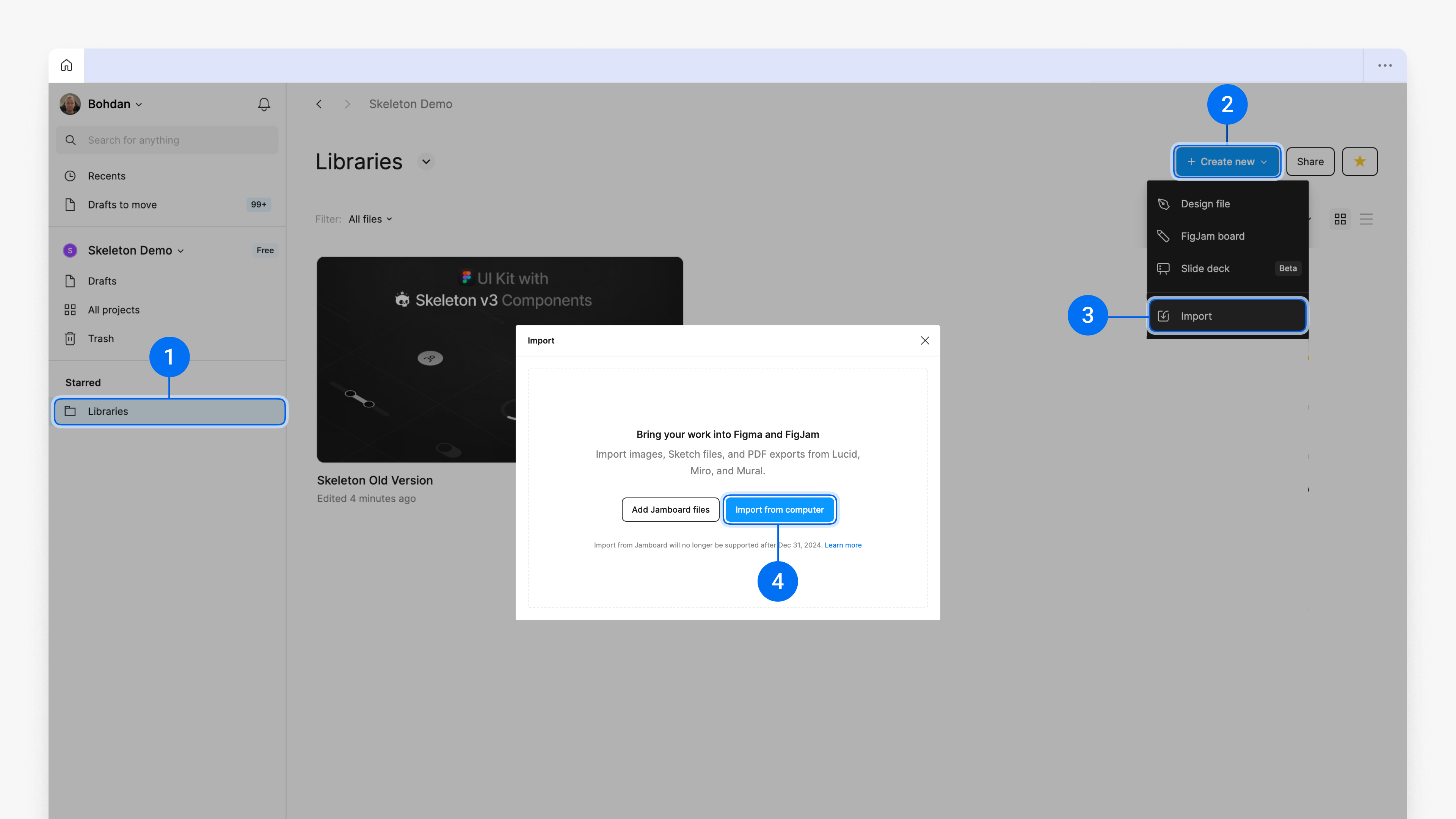
Double-click the updated kit file (for example Primitives v4.1.x or Auth v1.1.x) to open it.
At the top left, next to the file name, click the chevron icon⁴ and select Publish library…⁵. In the modal, click Publish⁶ and wait until Figma finishes publishing.
Only published files can be swapped into existing projects as libraries.
4. Open a project that uses the old version
Open any file that currently uses the previous version of your kit (for example Primitives v4.0.x).
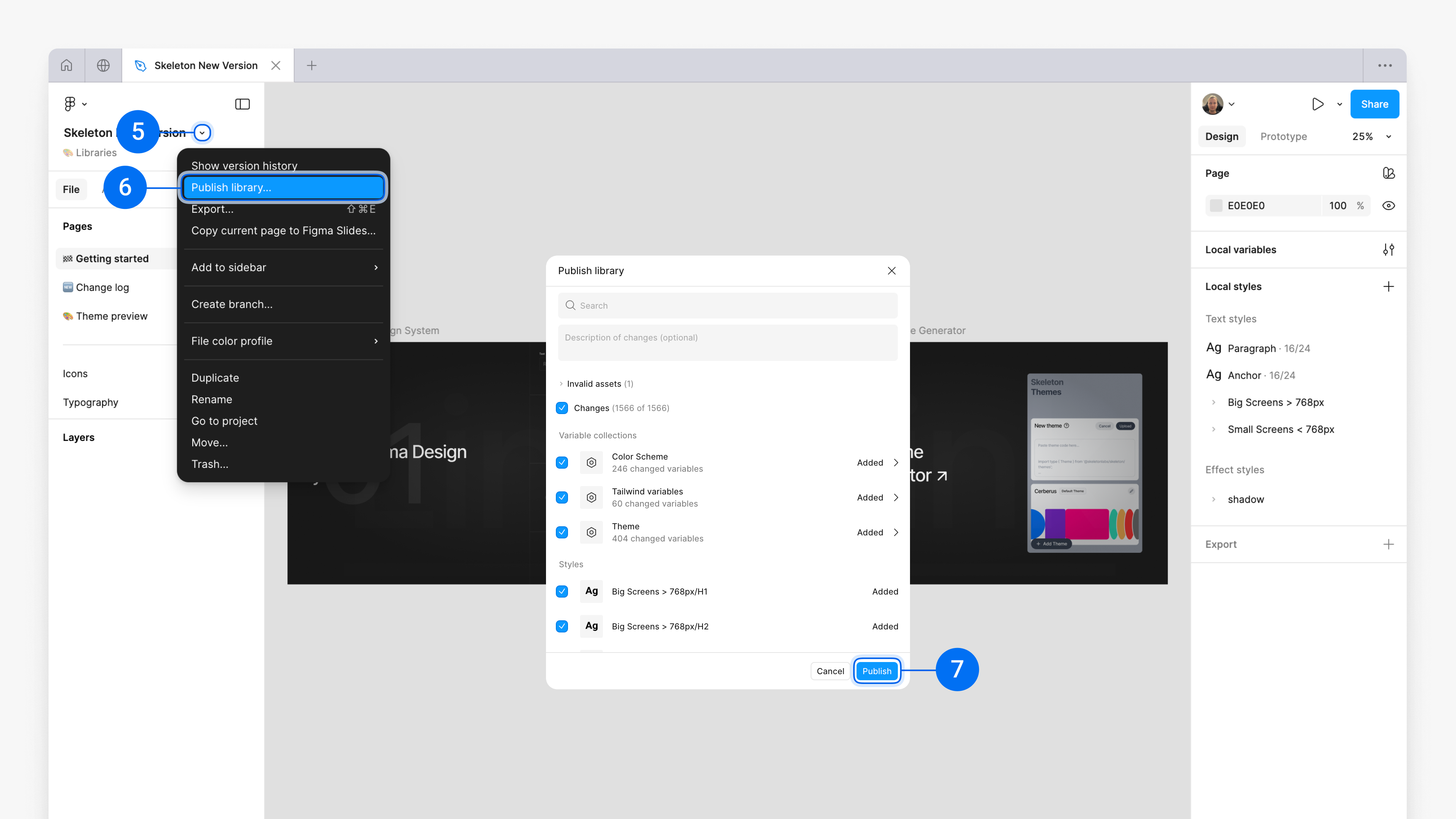
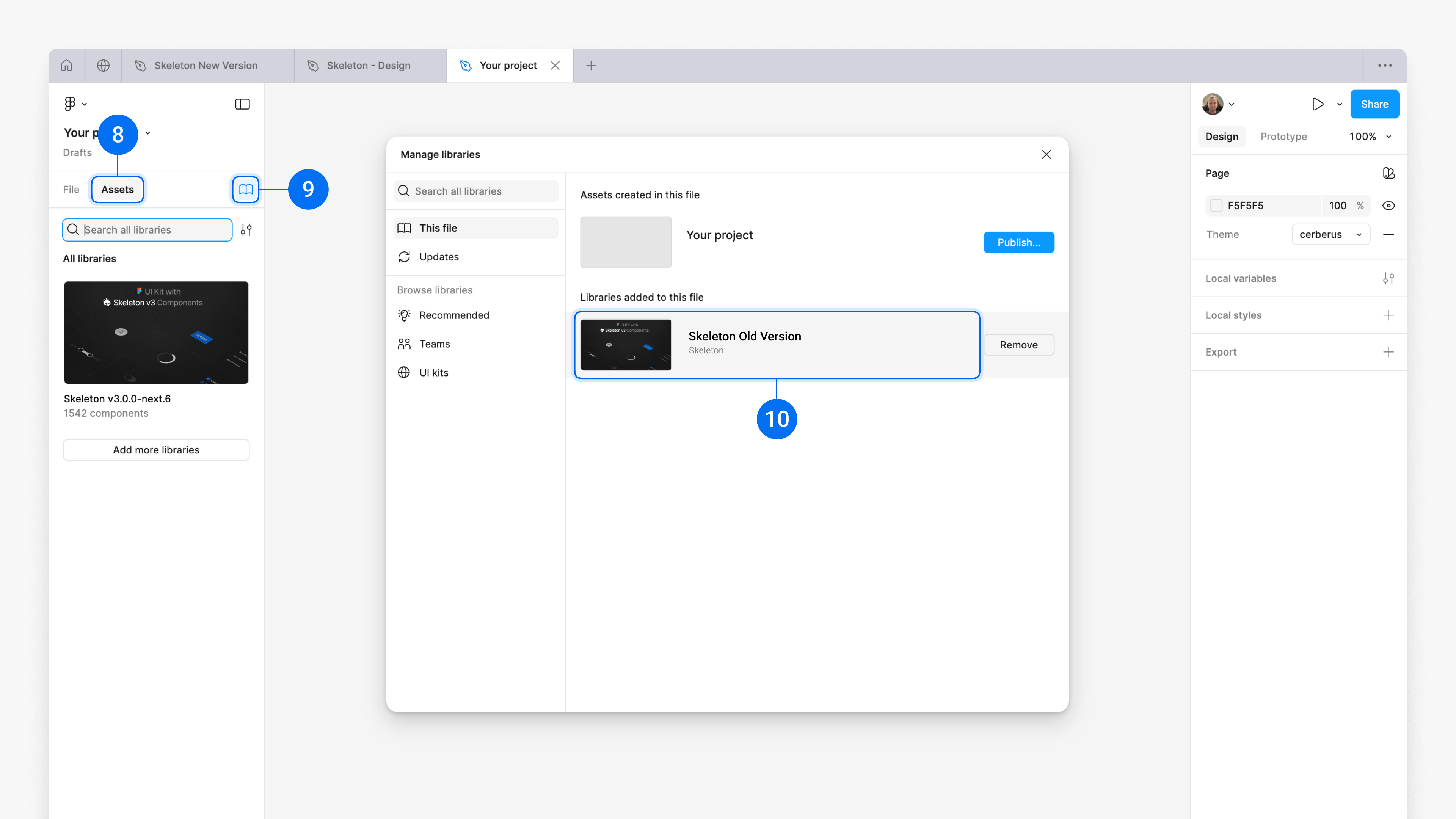
In the left sidebar, switch to the Assets⁷ tab and click the Library icon⁸ to open the Manage libraries⁹ popup.
In the Libraries added to this file section, select the old kit version you want to upgrade.
Click the Swap library¹⁰ button in the bottom-right corner of the popup.
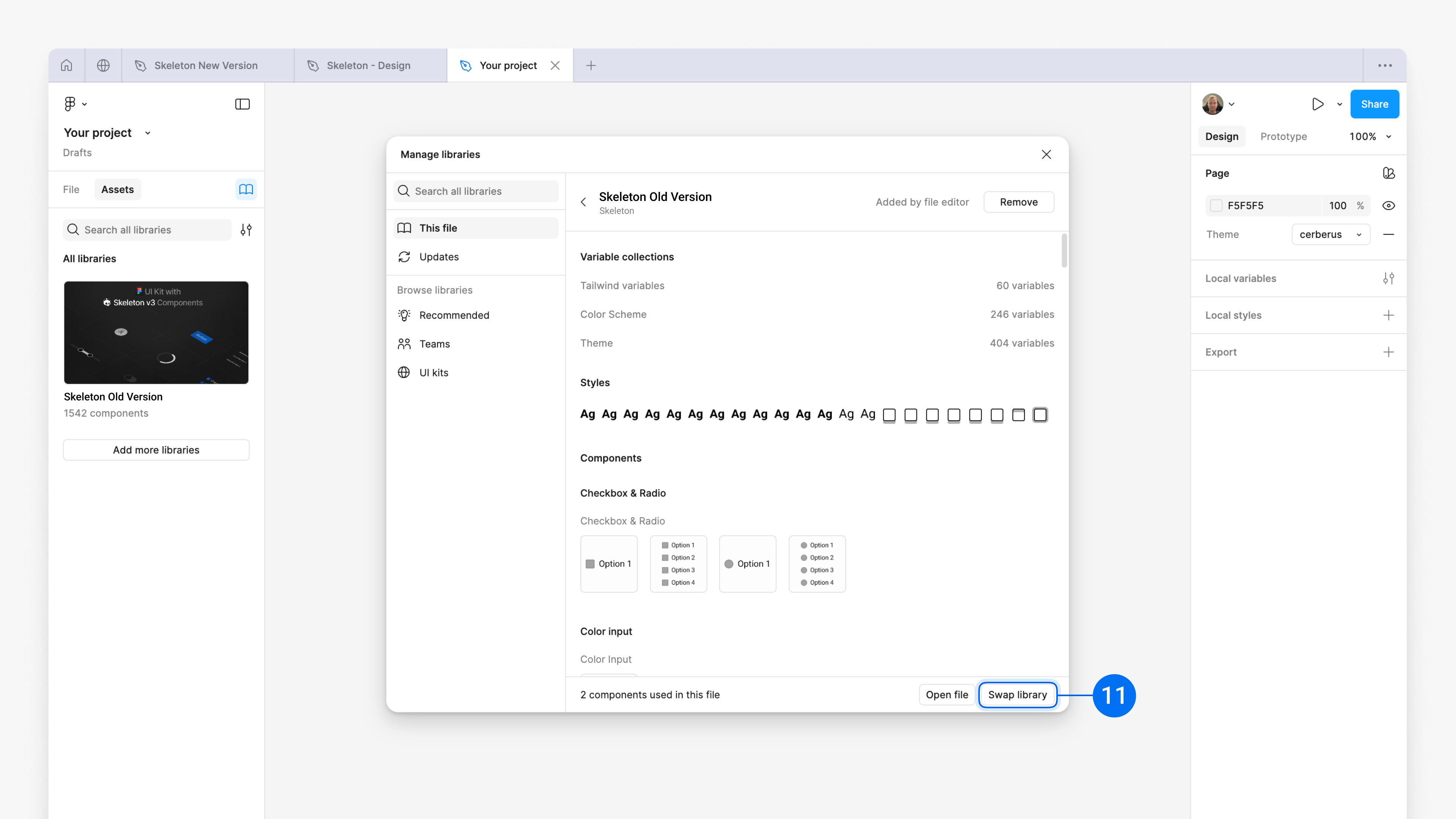
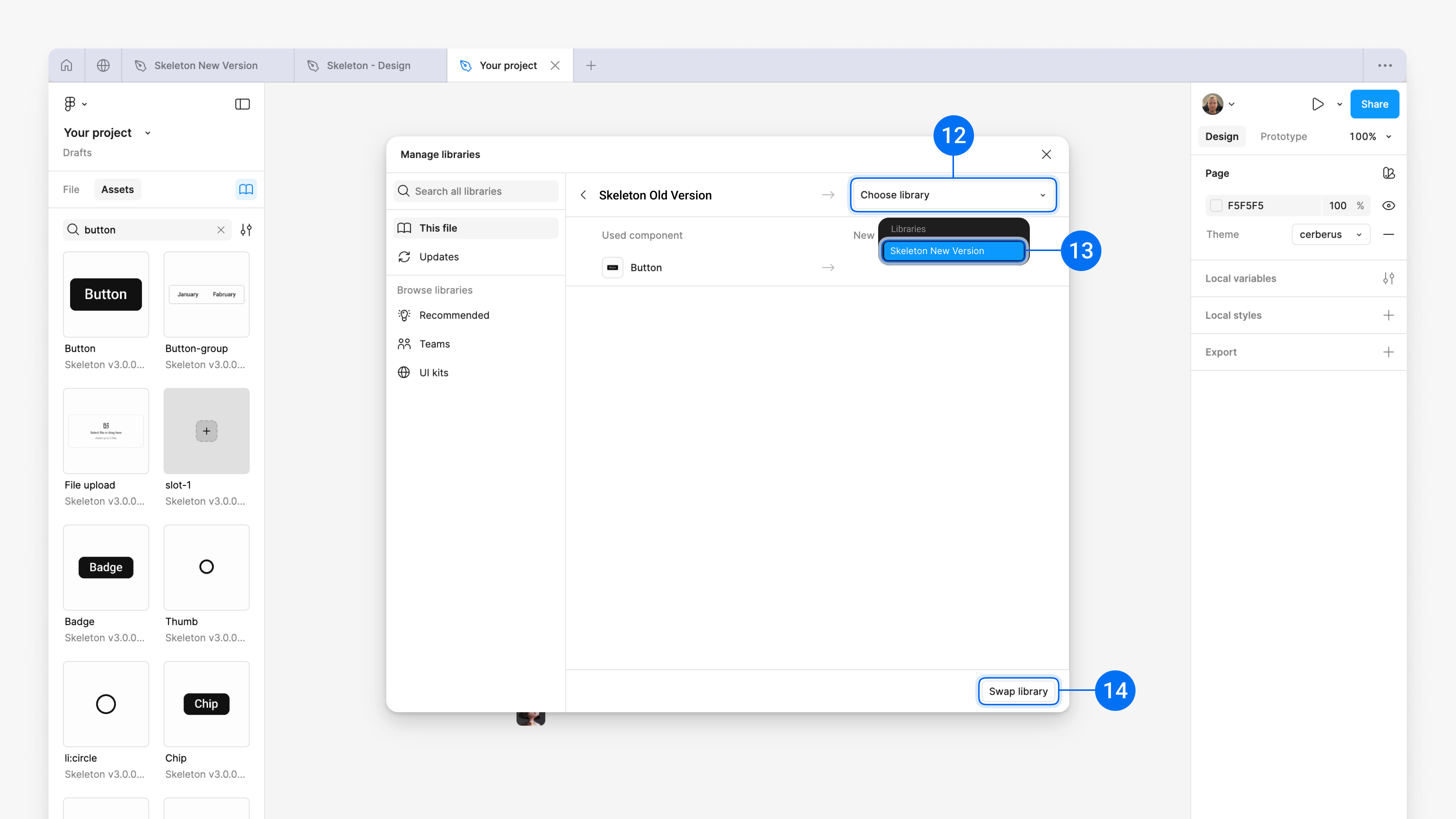
In the top-right corner of the popup, click Choose library¹¹, pick the new kit version (for example Primitives v4.1.x)¹², and then click Swap library¹³.
Figma now remaps all components in this file from the old kit to the new one. Your layouts stay intact, but they use the updated primitives and variables.
Because themes are stored as Figma variables on a specific file, you’ll need to re-run the Skeleton Themes plugin on the new Primitives version and install/update your theme again (see Chapter 2). That re-applies your branding on top of the updated kit.
Remove previous version
Once all projects are upgraded, you can safely remove the old kit versions. Keeping them around creates duplicate components and makes it harder to know which one is “the source of truth”.
Open the Libraries project where you keep your kits. In the Assets¹⁴ tab, open the Manage libraries popup again and find the old kit version.
In the Libraries added to this file section, click Remove¹⁵ next to the previous version you no longer use.
You can keep one “current” version per kit (Primitives and Auth) and update them over time – themes and components stay in sync across your whole product.